GizmoBench guides
Best File Splitter: Which Type to Use for Each File

The best file splitter depends on what is inside the file. A text file should be cut at line boundaries, an audio file at points the player can decode, an image into tiles, and a huge archive or disk image into raw byte parts. For text, audio, images and ZIP archives, GizmoBench has browser tools that run locally, with no upload and no account. For raw binary files, the free options are HJSplit, 7-Zip volumes and the command-line split tool, covered below.
Most lists of file splitters mix these jobs together, which is why a person with a 3 GB video and a person with a 40 MB log file end up reading the same advice. This guide separates them, so you can choose by file type, size limit and the person who has to open the pieces.
TL;DR
- Pick the splitter by file type first: text, audio, image, archive or raw binary. A tool built for the format keeps every part usable on its own.
- For text files, GizmoBench’s text splitter works in the browser. Files are processed locally, with no account.
- For raw binary files, HJSplit, 7-Zip multi-volume archives and the Linux
splitcommand are the common free routes, and each needs a matching rejoin step. - Always compare a checksum of the rebuilt file with the original. A part that is smaller than its siblings usually means a failed download.
- Before splitting, check whether compressing the file would be enough, because one smaller file is easier to send than several.
Table of Contents
- What a file splitter does, and when it helps
- How the options compare
- GizmoBench: the pick when the file is text, audio, an image or a ZIP
- Free options for raw binary files
- How to choose a part size
- Rejoining parts without corruption
- Splitting a file versus splitting a PDF
- Which one should you use?
- Try the tools built for the format
- FAQ
- Sources
What a file splitter does, and when it helps
A file splitter takes one file and writes several smaller files from it. There are two quite different kinds of splitting, and the difference decides which tool you need.
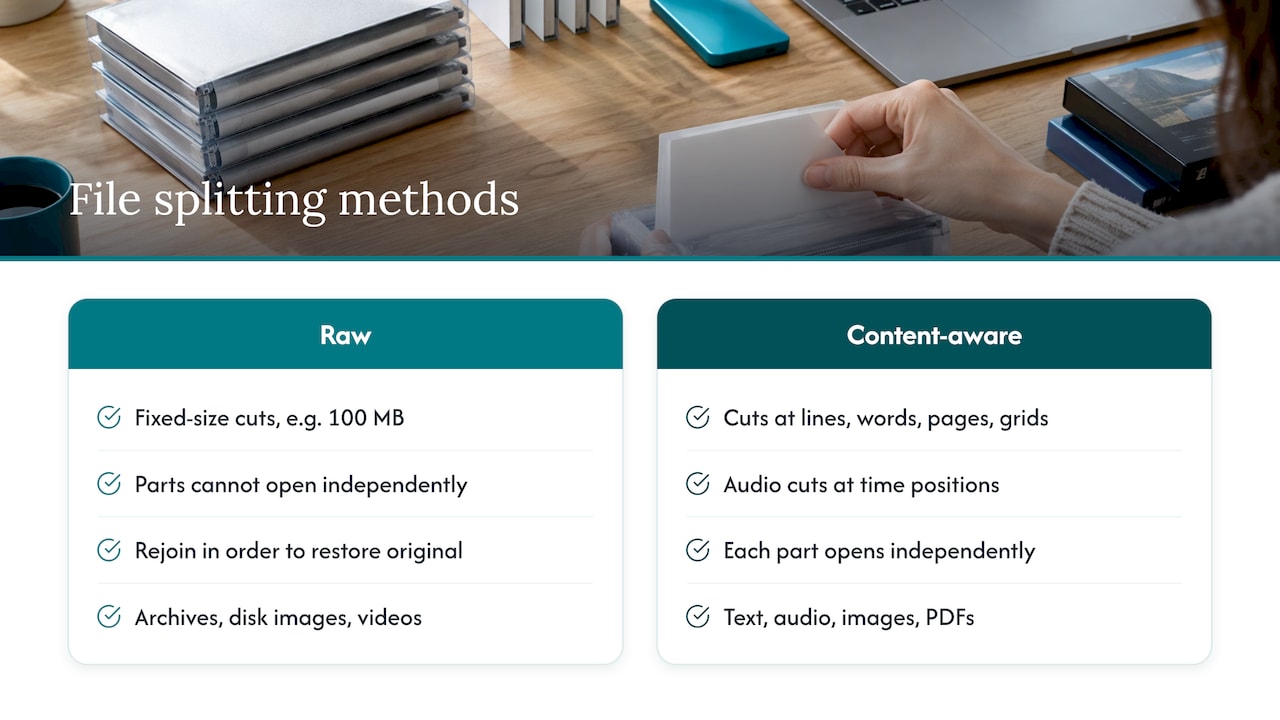
Raw (byte-based) splitting cuts the file at a fixed size, for example every 100 MB. The parts are meaningless on their own. They only work once a joiner puts them back in order, and the result is byte-for-byte the original. This is the approach for archives, disk images, videos and other formats you cannot open in pieces.
Content-aware splitting cuts at boundaries the format understands: lines or words in a text file, time positions in audio, a grid in an image, pages in a PDF. Each part opens by itself, which is usually what you want when the goal is to read, edit, upload or share a section rather than to move one big file.
The usual reasons to split are a size cap on an upload form or an email attachment, a drive formatted with a file-size limit, a text too long for a tool that accepts limited input, or a team that wants to work on sections in parallel. If the real problem is just a file that is slightly too large, shrinking it may be simpler than splitting it. We cover that later in this article.
How the options compare
The table groups the realistic choices by what they do best. Prices and platform details for third-party tools come from the sources linked in the sections that follow.
| Option | Best for | Splits by | Where it runs | Cost |
|---|---|---|---|---|
| GizmoBench Text Splitter | Long text, logs, exports | Numbered chunks, lines or words | Browser, processed locally | Core function free, no account |
| GizmoBench Audio Splitter | One long recording | Cuts into WAV parts | Browser, processed locally | Core function free, no account |
| GizmoBench Image Splitter | Photos for grids and carousels | Grid of tiles | Browser, processed locally | Core function free, no account |
| GizmoBench ZIP tool | Archives to open, build or merge | ZIP contents | Browser, processed locally | Core function free, no account |
| HJSplit | Any file, raw parts | Fixed part size | Desktop app | Free |
| 7-Zip volumes | Large folders, one archive | Volume size | Desktop app | Free |
split command |
Scripted or server work | Bytes or lines | Linux and Unix terminal | Included with the OS |
GizmoBench: the pick when the file is text, audio, an image or a ZIP
The distinguishing feature of GizmoBench tools is where the work happens. They run in your browser and file processing stays on your device, so a confidential contract, a customer export or a private recording is never sent to a server to be split. There is nothing to install and no sign-up, which matters when you are on a locked-down work laptop. Core functions are free to use, though we do not promise every feature will stay free forever.
Text files
Text is where content-aware splitting pays off most, because a cut in the wrong place can break a record in half. GizmoBench has three tools, and the choice is about what a part should mean:
- Text Splitter breaks text into numbered chunks, useful when you need pieces of roughly equal size.
- The line-based splitter cuts by number of lines and keeps the original line endings, which suits logs, CSV exports and code.
- The word-count splitter cuts by words and preserves the original spacing, which suits articles, transcripts and anything you feed into a tool with an input limit.
The Linux guide from Geek University makes the same distinction for the command line: split -b cuts by bytes and can slice through a line or a multibyte character, while split -l keeps whole lines. If your text contains accented letters, emoji or non-Latin scripts, a line or word boundary is the safer way to cut, because a byte boundary can land in the middle of a character.
Worked example. You have a 12,000-line server log and a ticketing portal that takes attachments of limited length. Choose the line-based splitter, set 3,000 lines per part, and you get four files. Every part begins and ends on a complete line, so whoever reads part three does not meet a half-cut entry. The same arithmetic applies to any size: total lines divided by lines per part, rounded up. The last part is usually shorter when the total does not divide evenly, a behavior that GNU split documents as well.
If the file is large enough that opening it is the problem, our comparison of browser and desktop large file editors shows what each approach handles.
Audio files
For a long recording, such as a lecture, a rehearsal or a podcast draft, cutting at arbitrary byte positions would produce files that do not play. The Audio Splitter cuts one file into WAV parts, so each part is a playable file rather than a fragment waiting for a joiner. That is the right model when the point is to share or edit separate sections.
Images
Splitting an image usually means cutting it into a grid, for example to post a panorama across several carousel slides or to print a large picture on several sheets. The Image Splitter cuts an image into a grid of tiles. If you want the opposite, combining several pictures, the Collage Maker does that in the browser.
ZIP archives
If your large file is a ZIP, the ZIP workbench can unzip, create and merge ZIP files in the browser. Merging is the useful part when a sender gave you several archives that belong together. Because the processing is local, the contents are not uploaded anywhere.
Free options for raw binary files
When the file is a video master, a disk image or a database dump, you need byte-based splitting and a matching joiner. Three free routes cover most situations.
HJSplit
HJSplit is a long-standing free splitter and joiner. According to The Windows Club’s roundup, updated in August 2023, it is cross-platform (Windows, Linux, Mac, Java, PHP and BSD), portable, supports encryption and MD5 verification, and handles up to 100 GB of data. Because it is a desktop program, the file is split on your own machine, and the person receiving the parts needs a compatible joiner. Check the current version and platform support on the developer’s page before installing, since download sites vary in what they offer.
7-Zip multi-volume archives
Archive tools can split while they compress, which is helpful when the data compresses well. The output is a set of volumes such as backup.7z.001, backup.7z.002 and so on. These are not the same as raw split parts: a multi-volume archive must be opened from the first volume with 7-Zip, not stitched together with copy /b, and it is worth testing the archive after transfer, since extraction can report CRC errors even when the archive opens. If the recipient only has the operating system’s built-in unzip feature, a multi-volume 7z set will not suit them.
The split command
On Linux, macOS and other Unix-like systems, split is built in. IBM’s support guide shows a 640 MB file cut with split -b 100M into six 100 MB parts plus a 40 MB final part, and rejoining is a matter of concatenating the parts in their original order. It is the right tool for scripts and servers. The cost is that it is a terminal command with no safety net for typos.
How to choose a part size
The part size is set by the smallest limit between you and the recipient. Work through these in order:
- Find the limit. It may be an upload form, an email provider’s attachment cap, a chat app or a storage device. Read the limit on that service’s own help page, because limits change and some count the encoded size of an attachment rather than the original.
- Leave headroom. Aim a little under the limit so that overhead does not push a part over it.
- Divide. Total size divided by part size, rounded up, gives the number of parts. A 640 MB file at 100 MB gives seven parts, as in the IBM example above.
- Prefer fewer, larger parts when the recipient has to join them by hand. Every extra part is another chance to miss one.
- Name parts so they sort correctly. Numbered suffixes keep them in order. If you must rename a batch, our guide to batch renaming files shows how on Windows and Mac.
For text, think in lines, words or chunks rather than bytes, since the question is usually how much a person or a tool can handle at once.
Rejoining parts without corruption
Splitting is only half the job. The recipient has to put the parts back together, and a single damaged part ruins the whole file. The routine below combines the IBM guidance with a Windows-focused checklist from MacMyths.
- Hash before you send. Compute a checksum (a short fingerprint, such as SHA-256 or MD5, that changes if any byte changes) of the original file. IBM’s guide also recommends checksums of each part, shared with the receiver so they can confirm the parts match after download.
- Send every part and the instructions. State which tool rejoins them and in what order.
- Keep parts together and unrenamed. The receiver should put all parts in one folder and leave the names alone, because joiners rely on the naming sequence.
- Compare sizes. All parts except the last should be the same size. A smaller middle part suggests an interrupted download.
- Rejoin on a local drive. MacMyths advises avoiding a network share or USB stick during the join, to reduce the chance of interruption.
- Hash the result. Compare the rebuilt file’s checksum with the original. If they match, the file is intact.
For content-aware splits of text, audio or images, there is no rejoin step for the reader to worry about, since each part stands alone. That is a real advantage when the recipient is not technical.
Splitting a file versus splitting a PDF
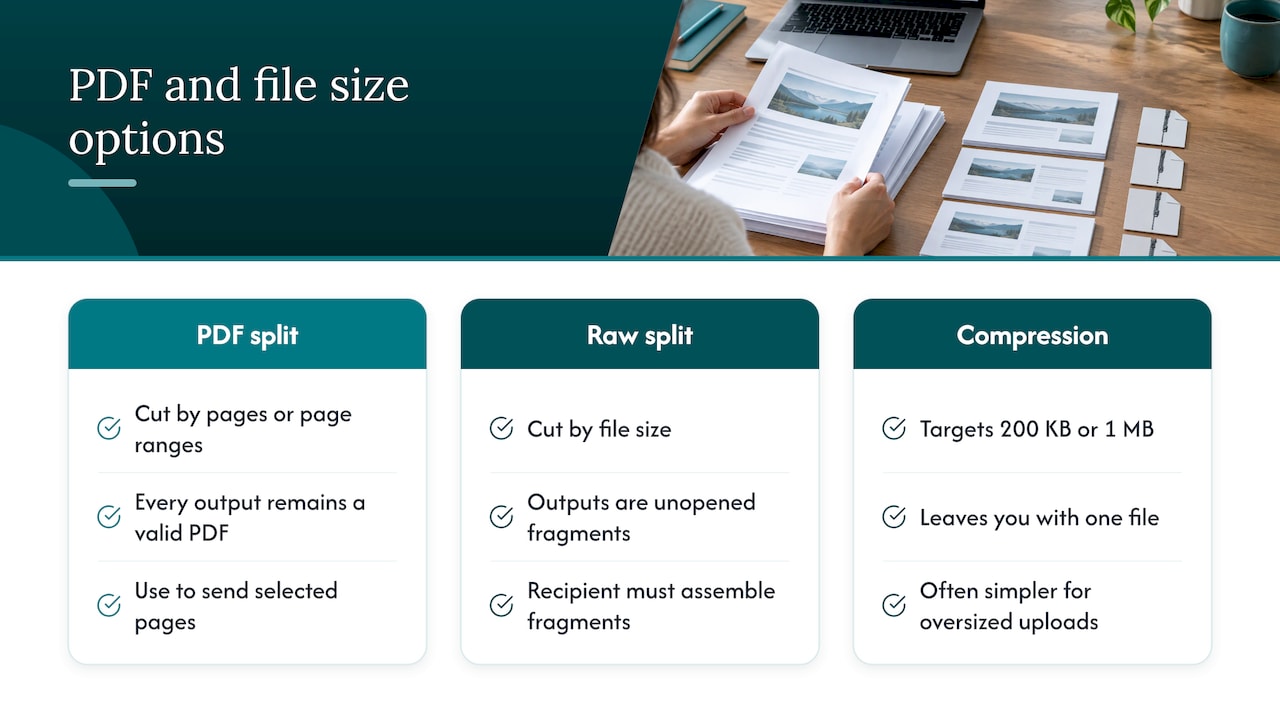
Searches for a file splitter often mix in PDF splitting, which is a different task. A PDF is split by pages or page ranges, and every output is a valid PDF. A raw split cuts a file by size and produces fragments that cannot be opened. If your goal is to send a PDF that is too big for a form, reducing its size is often simpler than any split: the PDF compressor targets a size such as 200 KB or 1 MB, and the video compressor for email does the same for clips. Compression leaves you with one file, which is one fewer thing for the recipient to assemble.
Which one should you use?
| Your file | Use | Why |
|---|---|---|
| Log, CSV export, transcript, long document | GizmoBench text splitters | Whole lines or words in each part, processed locally |
| Long recording | Audio Splitter | Each WAV part plays on its own |
| Panorama or large picture | Image Splitter | A grid of ready-to-post tiles |
| Several related ZIP files | ZIP workbench | Unzip and merge in the browser |
| Video master or disk image | HJSplit or 7-Zip volumes | Raw parts and a matching joiner |
| Server or scripted job | split |
Built into Linux and Unix systems |
Try the tools built for the format
If your file is text, audio, an image or a ZIP, start with the matching GizmoBench tool. Each runs in the browser without an account, and the files stay on your device while they are processed. The full catalog, from calculators to file utilities, is on GizmoBench.
FAQ
What is the best free file splitter?
It depends on the file. For text, audio, images and ZIP archives, GizmoBench’s browser tools are free for their core functions and need no account. For raw binary files, HJSplit and 7-Zip volumes are the common free desktop choices, and split is built into Linux and Unix systems.
Is it safe to split a confidential file online?
It is safest when the file never leaves your device. GizmoBench tools process files locally in the browser, so nothing is uploaded to be split. Whichever tool you use, check how it handles files before you load anything sensitive.
How do I know the rejoined file is not corrupted?
Compare a checksum, such as SHA-256 or MD5, of the rebuilt file with one taken from the original before splitting. IBM’s guidance also suggests verifying each part after download, before you rejoin. If the two checksums match, the file is intact.
Do I need special software to open the parts?
For raw byte parts, yes: the recipient needs a joiner, or a concatenation command, that rebuilds the file in the right order. For text, audio and image splits made with a content-aware tool, each part opens normally on its own.
Sources
- Best free File Splitter and Joiner software for Windows PC, The Windows Club
- How to Split a File into Multiple Files in Linux, Geek University
- Split Large Files into Smaller Chunks on Linux with the split command, IBM Support
- How to Split a File Into Multiple Files in Windows 11, MacMyths
- 7-Zip Combining and Archiving: Complete Guide, iTechGuides